Reports: what moved this week

A plain list. No charts. No scores. Just what you did.

Why it exists

  • At the end of the week, most people feel they did nothing.
  • The report shows what really happened, so you can see: I did more than I thought.

On this page

  1. Open the Reports tab.
  2. Read the list.
  3. Tap any number.
  4. Choose what you see.
  5. Look at older weeks.

Step 1. Open the Reports tab.

You see This week. The first line says how many days you showed up. A day counts if you wrote or ticked anything at all.
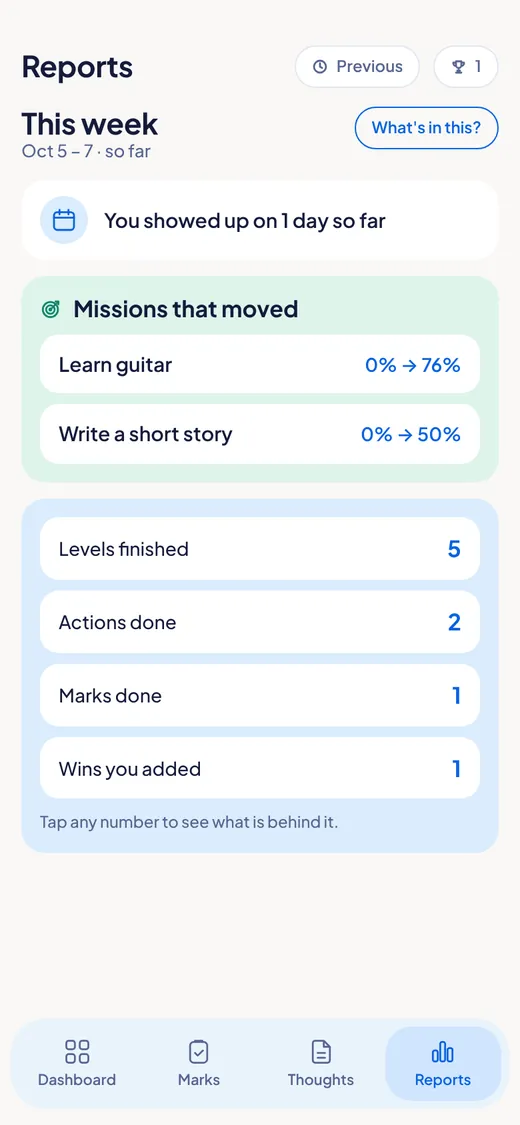
The weekly report showing days showed up, missions that moved, levels finished, actions done, marks done and wins added.

Step 2. Read the list.

You see: Missions that moved. Levels finished. Actions done. Marks done. Wins you added.

The weekly report list: Missions that moved, Levels finished, Actions done, Marks done and Wins you added.

Step 3. Tap any number.

Tap a number to see exactly what is behind it.

The numbers in the weekly report. Tap any number to see what is behind it.

Step 4. Choose what you see.

Tap What's in this? to turn rows on or off. Nothing stops being counted. You just stop seeing it.

The What's in this? button next to This week at the top of the report.

Step 5. Look at older weeks.

Tap Previous to see past weeks.

The Previous button at the top of the Reports tab.

Good to know

  • If nothing moved, it says: "Nothing moved this week. That happens."
  • You are never told how much you typed.
  • Examples you started with are not counted.

Features

For Windows and Android. Not on iPhone or Mac yet.