Missions: add levels, give each a percent, watch the bar move

For things you have planned. Break it into levels. Say how much each level counts. Tick levels as you finish them and watch the bar fill, all by itself.

Why it exists

  • Some goals are big, and you can feel nothing is moving.
  • A mission makes the progress visible.
  • You do not type a percentage. You just finish a level, and the bar moves.
  • Seeing the bar move is what keeps you going.

On this page

  1. Tap + on the Missions block.
  2. Name your mission.
  3. Add your first level.
  4. Write the level and say how much it counts.
  5. Add the other levels.
  6. See your mission on the Dashboard.
  7. Open it and tick levels.
  8. Finish and keep the win.

Step 1. Tap + on the Missions block.

On the Dashboard, find the Missions block. Tap the +.
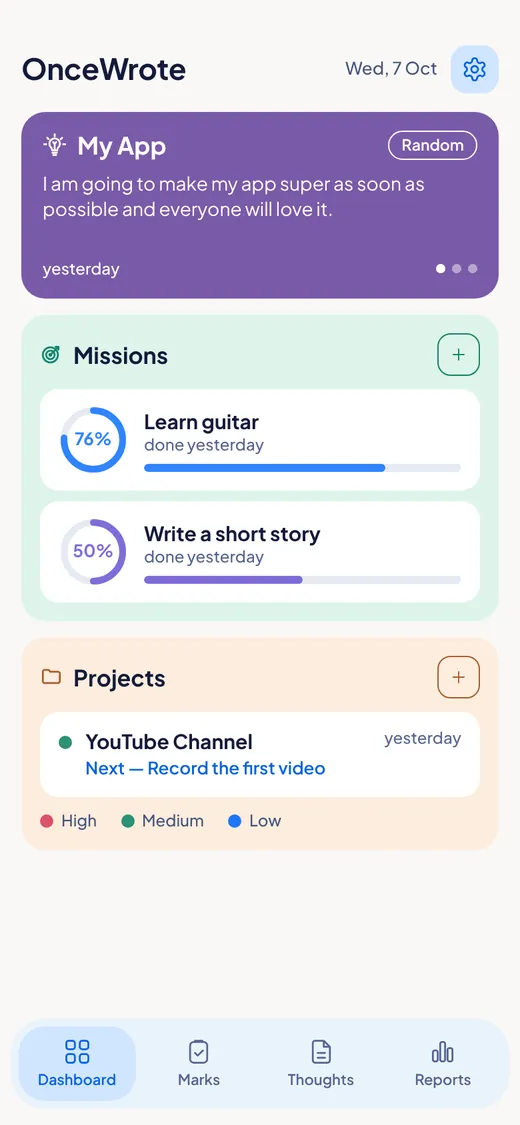
The Missions block on the Dashboard with a plus button and two missions with progress rings.

Step 2. Name your mission.

Type what you want to do. For example: "Learn guitar".
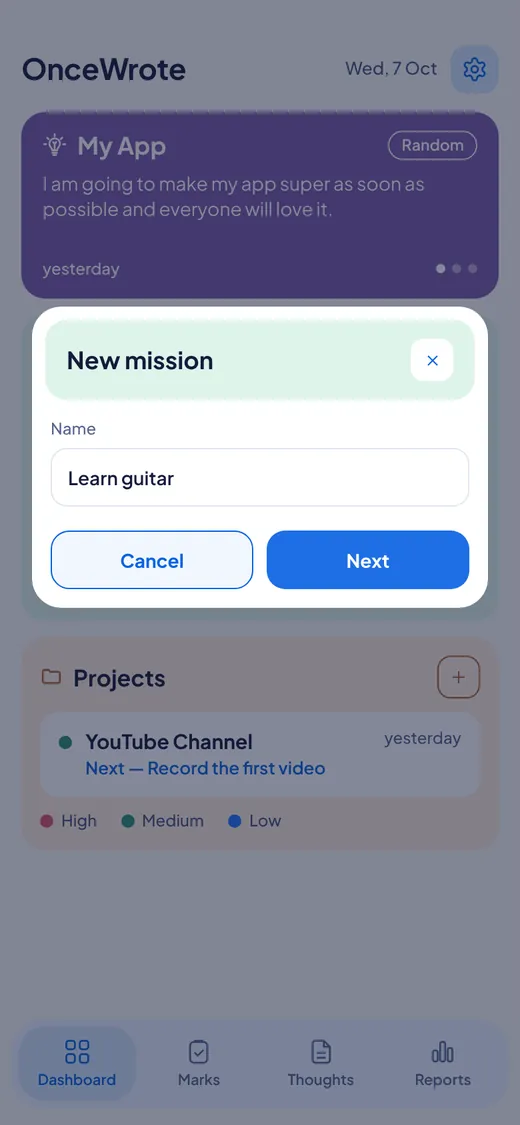
The New mission popup with one box for the name.

Step 3. Add your first level.

OnceWrote says: "You can add more than one level." Tap Add level.
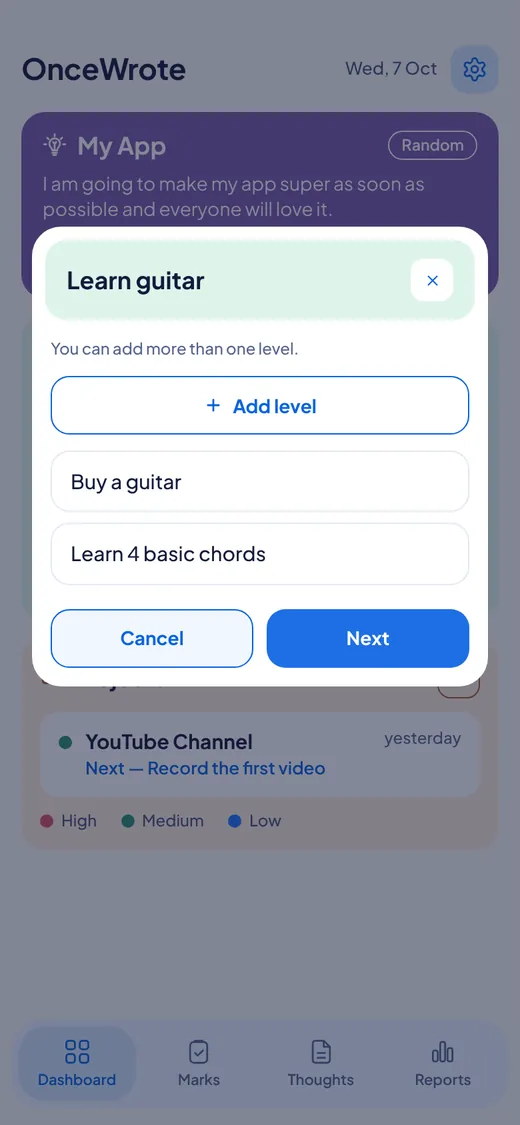
A list of levels with an Add level button.

Step 4. Write the level and say how much it counts.

Write the step, for example "Buy a guitar". Under it, move the slider to say how much it contributes to the mission. The screen tells you how much is still free, for example "24% is still free". Tap Save.
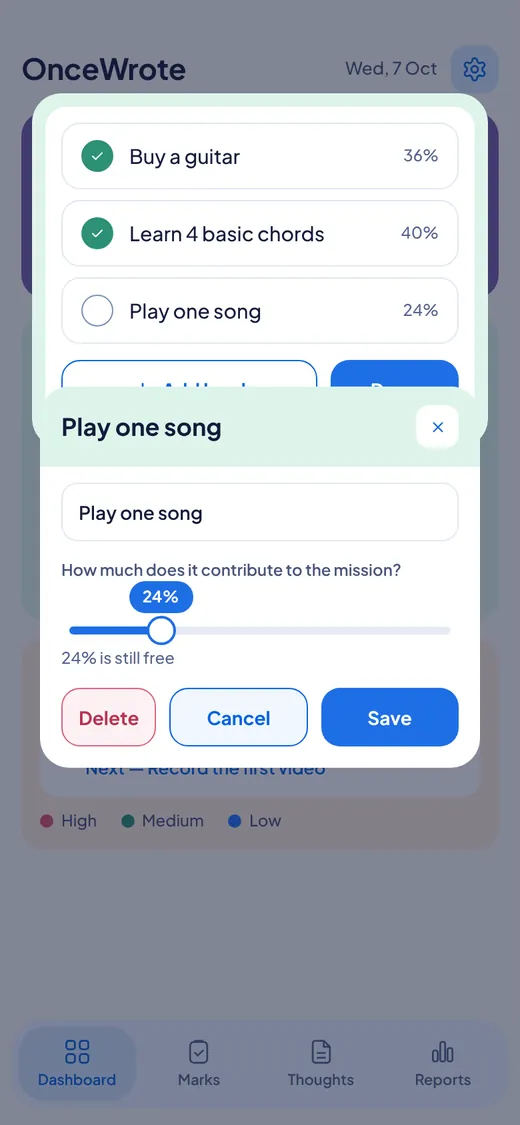
A level called Buy a guitar with a slider showing how much it contributes and a note that 24 percent is still free.

Step 5. Add the other levels.

Tap Add level again. Do the same for each step. For example: "Learn 4 basic chords". "Play one song". Together, your levels use up to 100 percent. The slider stops when no percent is left, so you cannot go over.
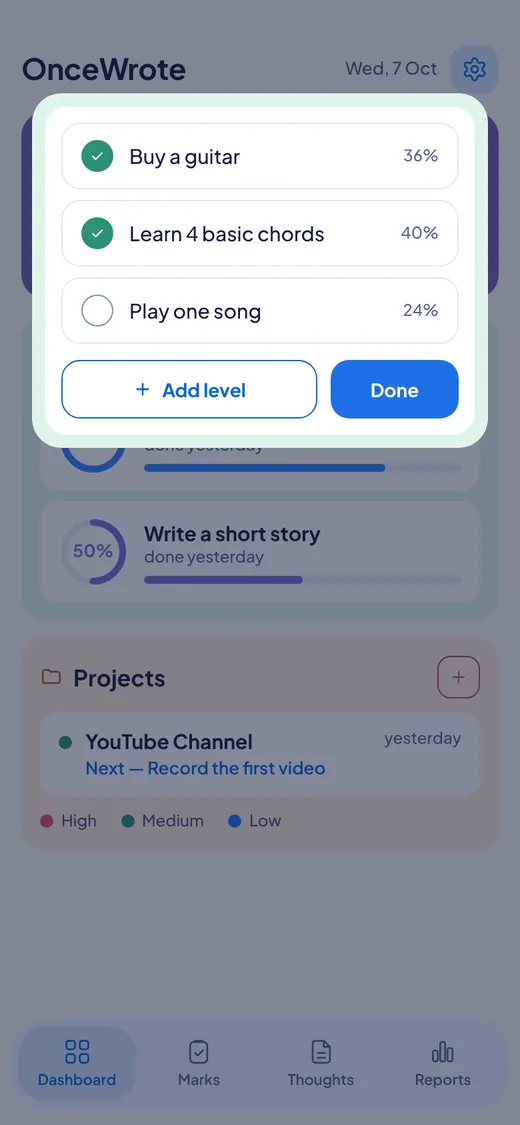
A mission with three levels and their shares.

Step 6. See your mission on the Dashboard.

Your mission shows a ring with the percent, and a bar under its name.

The Learn guitar mission with a ring at seventy-six percent and a progress bar.

Step 7. Open it and tick levels.

Tap the mission. A popup shows all your levels. Tap a level to tick it when you finish it. Watch the ring and the bar move. The popup also tells you, for example, "2 of 4 levels done".
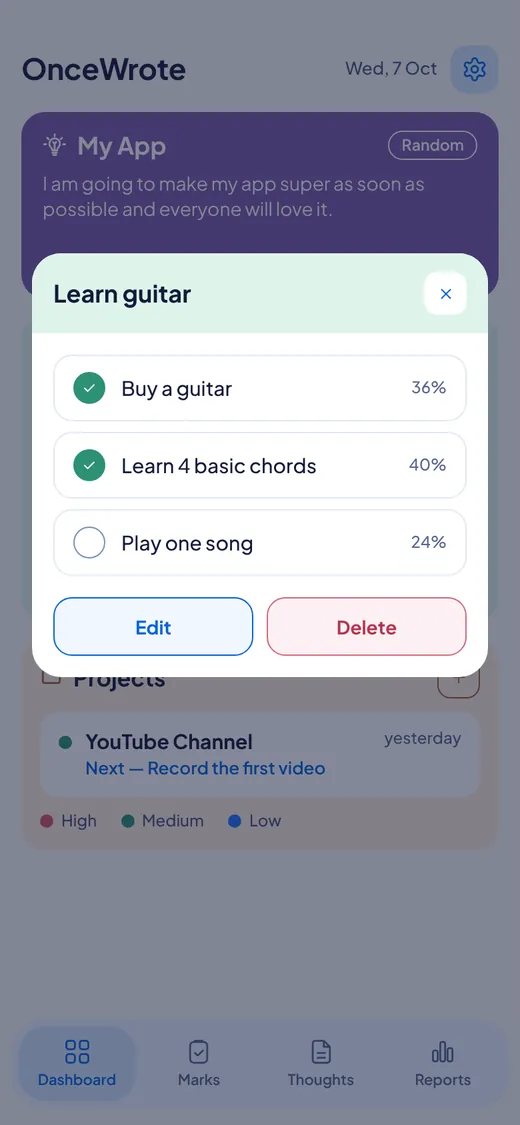
The Learn guitar mission open, with three levels to tick and a bar showing progress.

Step 8. Finish and keep the win.

When every level is ticked, OnceWrote asks if you finished. Say yes, and you can save it as a win with today's date. If not yet, it goes back one step.
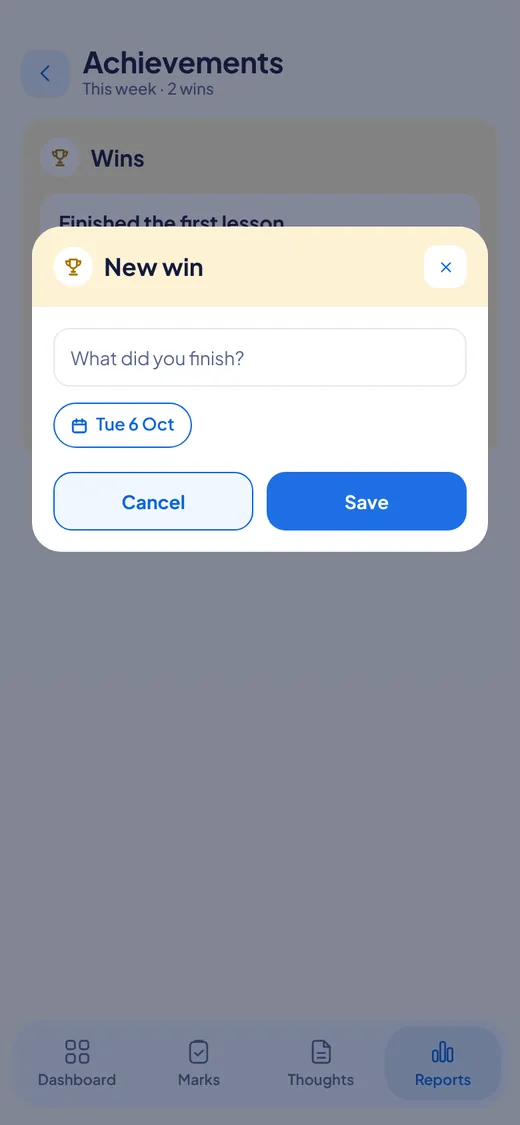
A popup asking What did you finish with a date and a Save button.

Good to know

  • Levels are ticked by you. Nothing ticks itself.
  • You can change a level, add a level or delete a level any time. Tap Edit.
  • Your Weekly Report shows each mission that moved, for example "Learn guitar 0% → 76%".
  • Missions are for plans. If you do not have a plan yet, make a Project.

Questions

  • Do I have to type a percentage? No. You say how much each level counts. The bar does the rest.
  • Can I have many missions at once? Yes. They sit side by side on the Dashboard.
  • What if I lose interest? You can leave it, or delete it. Nothing turns red.

Features

For Windows and Android. Not on iPhone or Mac yet.