Projects: name it, list your actions, tick them off

The easiest way to get something done. Make a project. List what you want to do. Tick each action when you do it. Always see what is next.

Why it exists

  • Most things in life are not a neat plan. They are a list of things to do.
  • You do not need to know every step at the start.
  • So a project is just a name and a list. You add to the list as you go.
  • No deadline. No "overdue". Just: what is next?

On this page

  1. Tap + on the Projects block.
  2. Name your project.
  3. Add your actions.
  4. Say how much it matters right now.
  5. See what is next.
  6. Open it, and tick actions as you do them.
  7. Add more actions, any time.

Step 1. Tap + on the Projects block.

On the Dashboard, find the Projects block. Tap the +.
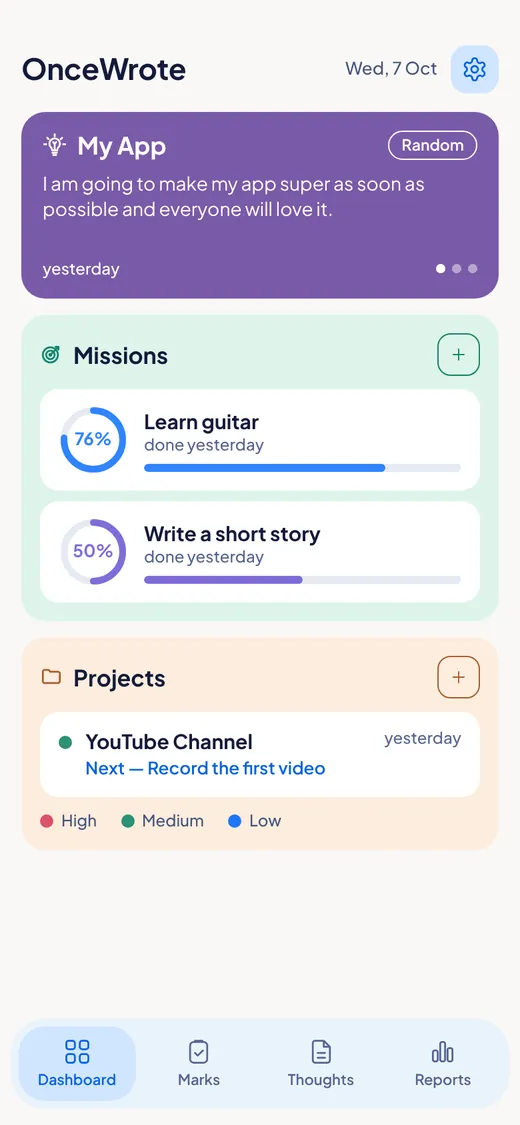
The Projects block on the Dashboard with a plus button and a project called YouTube Channel.

Step 2. Name your project.

Type a name. Keep it short. For example: "YouTube Channel".
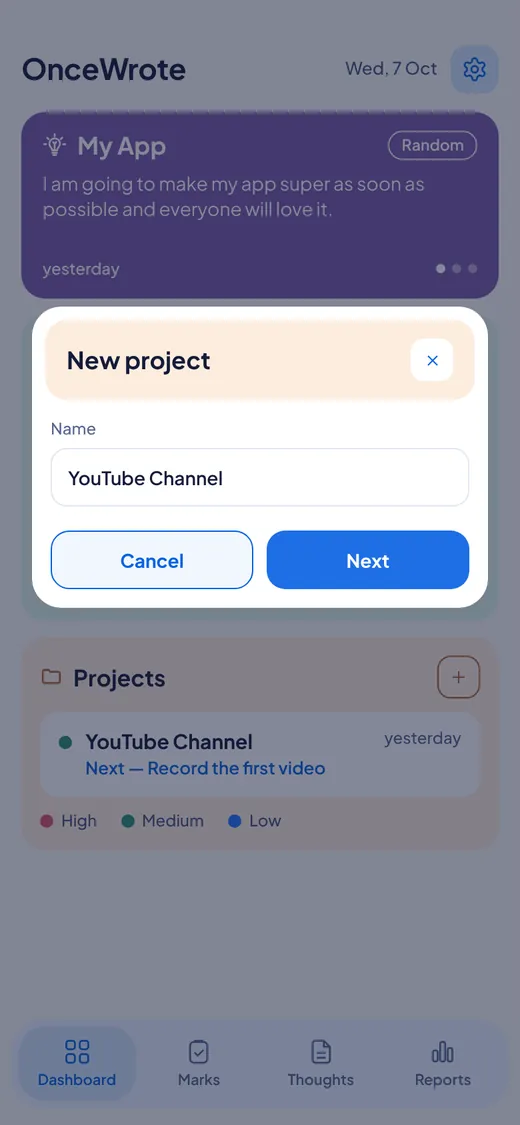
The New project popup with one box for the name.

Step 3. Add your actions.

OnceWrote says: "You can add more than one action." Tap Add action. Write the first thing you want to do. Save. Tap Add action again for the next one. Add as many as you like. You can also add none now and add them later.

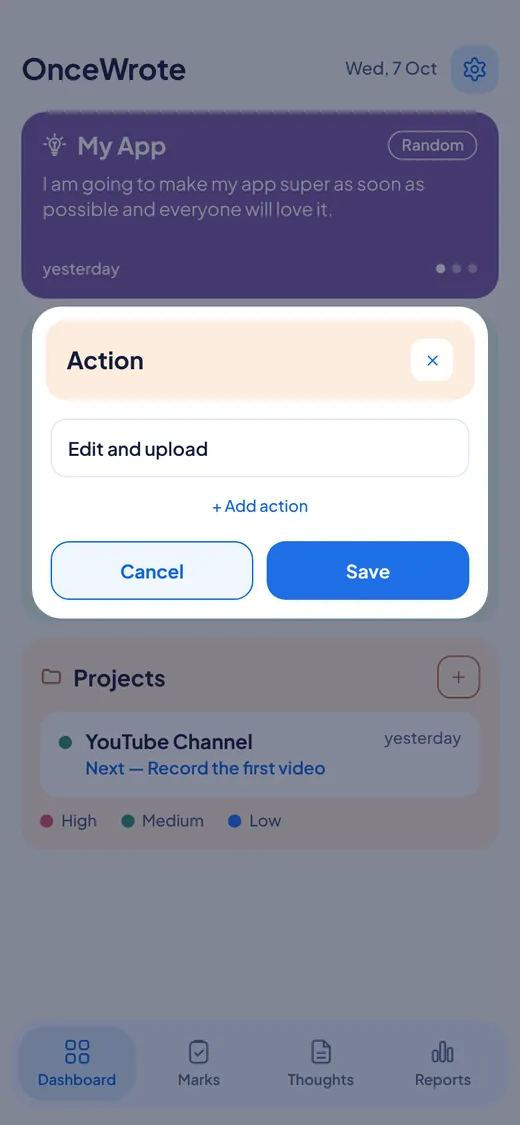
A list of actions with an Add action button.
A popup with one box to write an action.
A list of actions with an Add action button, and a popup with one box to write an action.

Step 4. Say how much it matters right now.

OnceWrote asks: "How much does it matter right now?" Choose High, Medium or Low. This only puts important projects first. It is not a deadline.
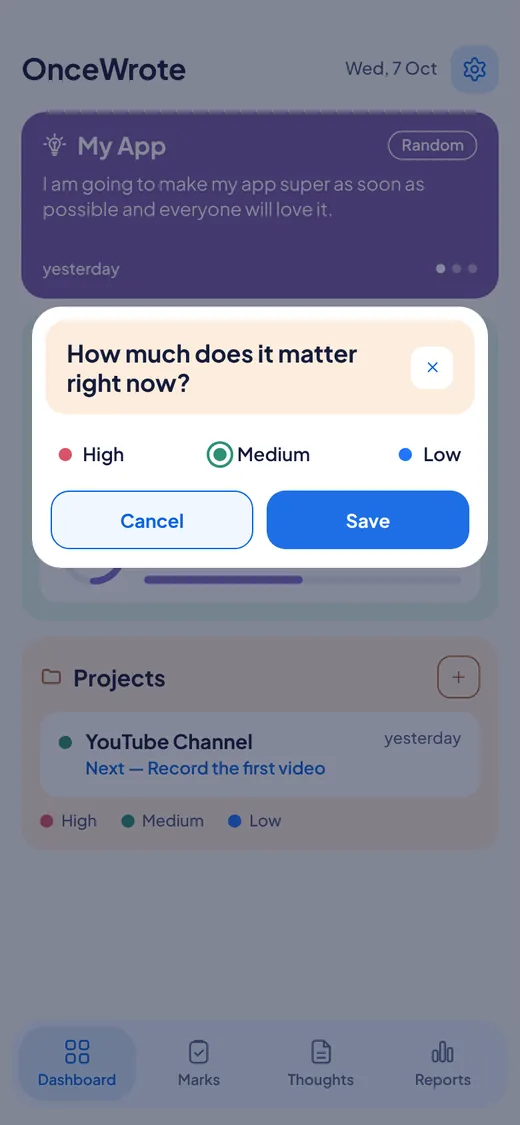
A question asking how much the project matters, with three choices: High, Medium and Low.

Step 5. See what is next.

Your project now sits on the Dashboard. It shows Next and the first action you have not done yet. A coloured dot shows its priority.

The project card showing Next, Record the first video.

Step 6. Open it, and tick actions as you do them.

Tap the project. A popup opens with all your actions. Tap an action to tick it. Tap again to untick. Done something? Tick it and feel it.
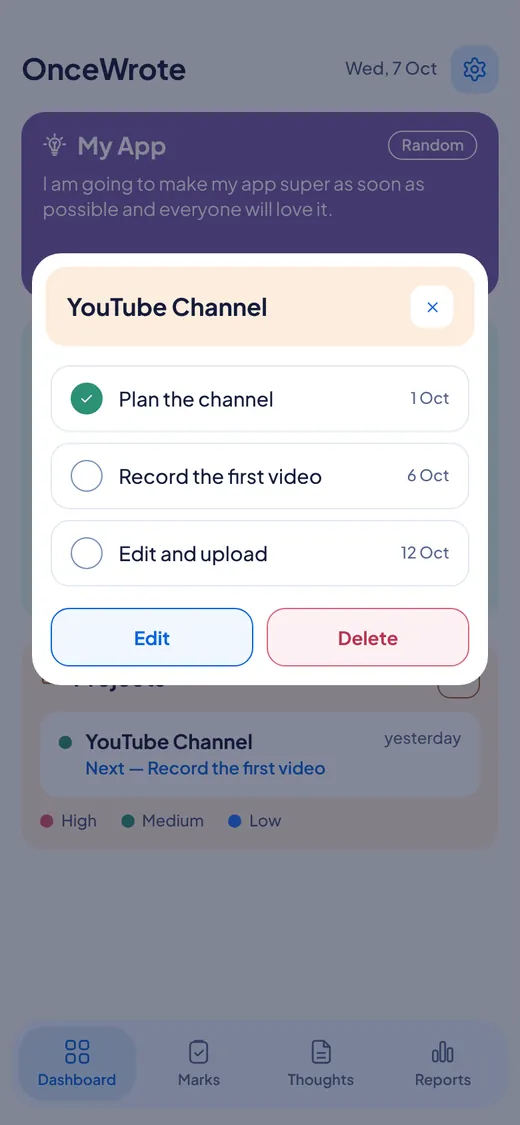
The YouTube Channel project open with three actions, each with a tick box.

Step 7. Add more actions, any time.

In the open project, tap Edit. You can add actions, change the priority, or change the words. Tap Done.
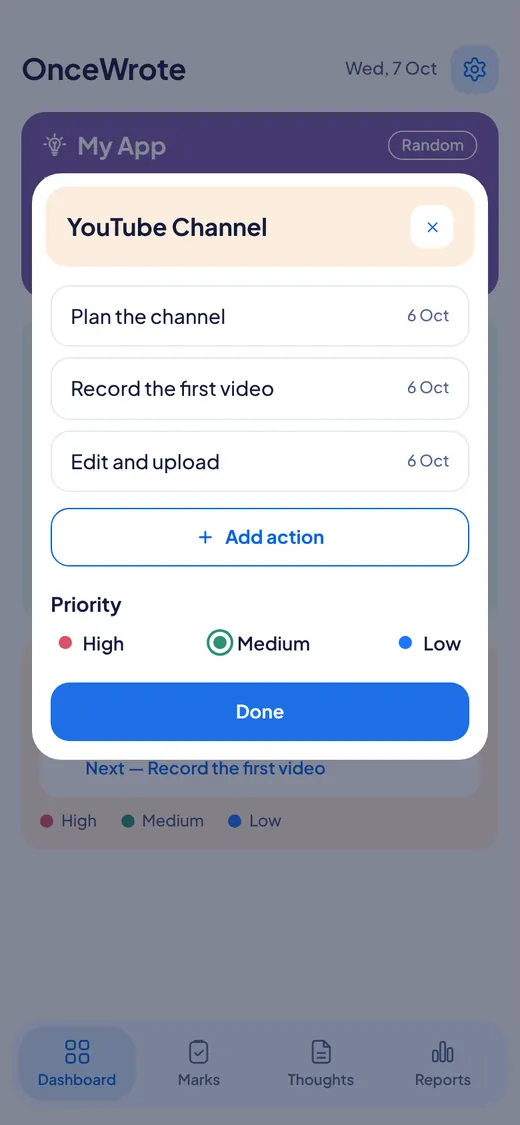
A project in edit mode with an Add action button and High, Medium and Low priority choices.

Good to know

  • Projects are sorted so the most important one is first, then the one you used most recently.
  • A project can have no actions at first.
  • Nothing is ever overdue. Nothing turns red.
  • Ticked actions count in your weekly Report as Actions done.
  • If you later know the steps and want a percentage, make a Mission for it. See Missions.

Questions

  • What is the difference between a Project and a Mission? A Project is a list you tick. A Mission has levels with percent, and a bar that moves.
  • Can I delete a project? Yes. Open it and tap Delete.
  • Is there a deadline? No.

Features

For Windows and Android. Not on iPhone or Mac yet.