
How OnceWrote works
Pick a part. Each one has its own guide with screenshots, so you can see every screen and every popup before you start.
One place for every kind of thing
| You have | Use a | What it is |
|---|---|---|
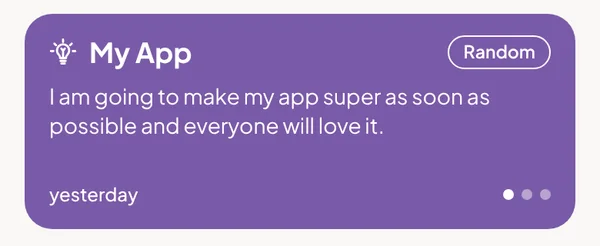
| A thought | Thought | Write it down. It comes back on the slider. |
| A small thing to do | Mark | Tick it once, or on the days you choose. |
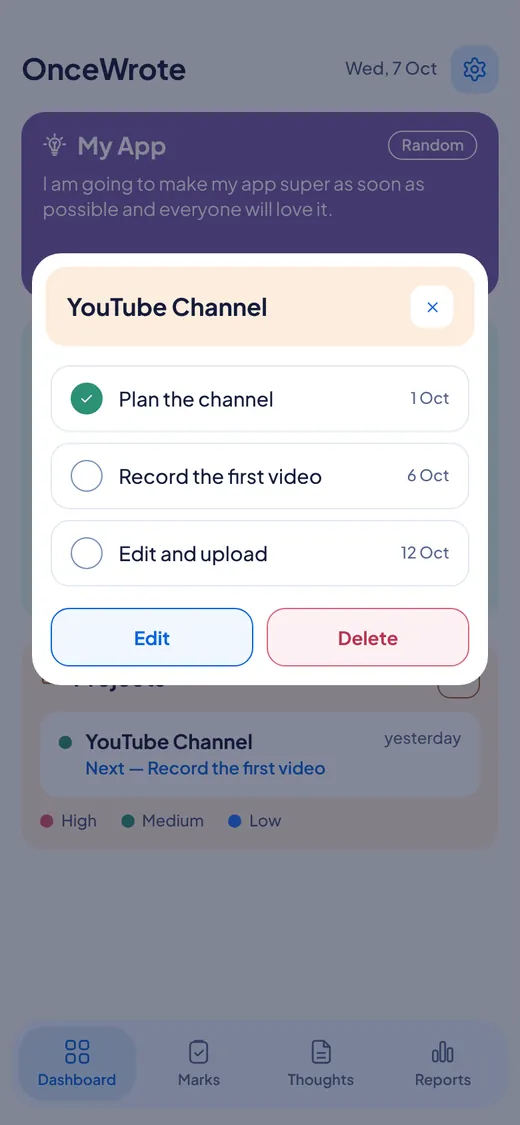
| A list of things, no fixed plan | Project | Actions you tick off. It shows what is next. |
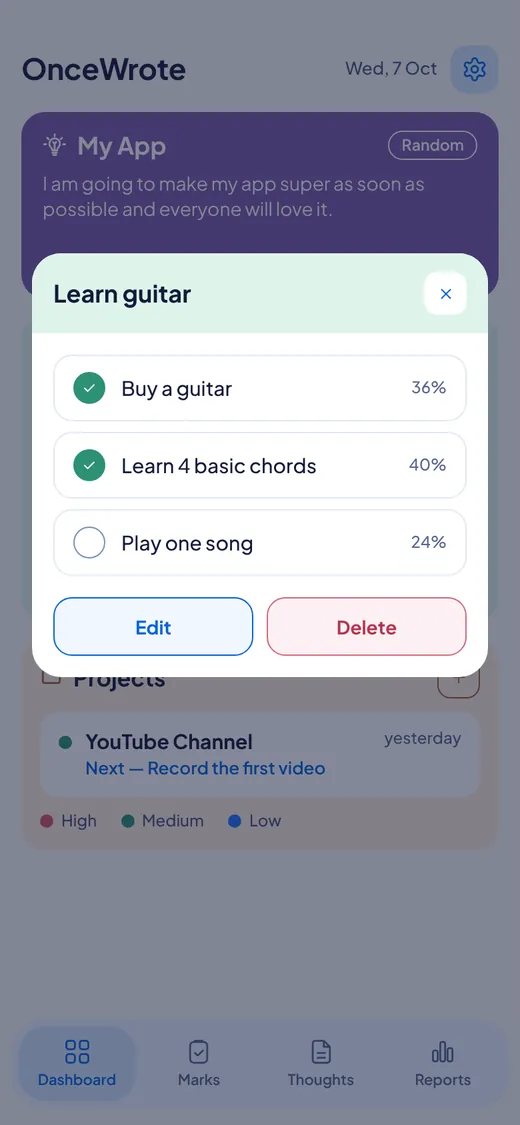
| A plan with steps | Mission | Levels with percent. The bar moves as you go. |
Also inside
| Small thing | What it does |
|---|---|
| Examples to start | OnceWrote begins with a few examples so the screens are not empty. They are not counted in your reports. Remove them with one tap: Clear example data. |
| Light and dark | Choose a bright or a dark screen. |
| Text size | Small, Medium or Large. |
| PIN lock | Lock the app so nobody else can open it on your phone. On phones with a fingerprint reader, you can use your fingerprint too. |
| A gentle reminder | One message at the end of the day, at most. It starts at 9:30 PM. Change the time, or turn it off, any time. |
| Export and Import | Save everything you wrote into one file. Bring it back later. The file is not locked, so keep it safe. |
| Change password | From any device where you are signed in. |
| On Windows | The app lives in the tray by your clock. Your computer keeps your newest backup, and you can back up now or restore. You can start OnceWrote with Windows. |
For Windows and Android. Not on iPhone or Mac yet.